


Give a New Life to Your Volkswagen Touareg, Multivan, or Transporter
Say goodbye to the factory radio and take the leap into the future. This HD touch screen integrates perfectly into the dashboard of your Volkswagen Touareg, Multivan, or Transporter 2005-2011, giving you instant access to modern technology without losing its aesthetics.
What you gain with this upgrade:
- 📱 Total Connectivity (Wireless): Enjoy Apple CarPlay and Android Auto without needing to connect cables.
- 🗺️ Precise GPS Navigation: Built-in GPS to use Google Maps, Waze, or your favorite map apps.
- 🎵 Superior Sound (RDS+DSP): The digital sound processor (DSP) and RDS tuner enhance the factory audio quality.
- 📞 Bluetooth Hands-Free: Crystal clear calls and uninterrupted music streaming (Spotify, etc.).
- 🔌 Perfect Integration: Maintains full compatibility with steering wheel controls.
⚠️ Attention! Check compatibility
Check the shape of your original radio; if it has rounded corners, this kit is not compatible. Size: 230.5 mm * 117 mm.

CHOOSE YOUR MODEL
| Processor | Octa-Core |
| RAM + ROM | 4GB + 64GB |
| Interface Speed | Very Fluid |
| Wireless CarPlay / Android Auto | |
| Screen | 7-inch IPS 1280x720 HD |
| GPS / Bluetooth / Wi-Fi | |
| Premium Sound (RDS+DSP) | |
| 4G Connectivity | |
| Multitask | Advanced |
| Ideal Use | Demanding Apps |
CANBUS configuration (for vehicles with CANBUS)
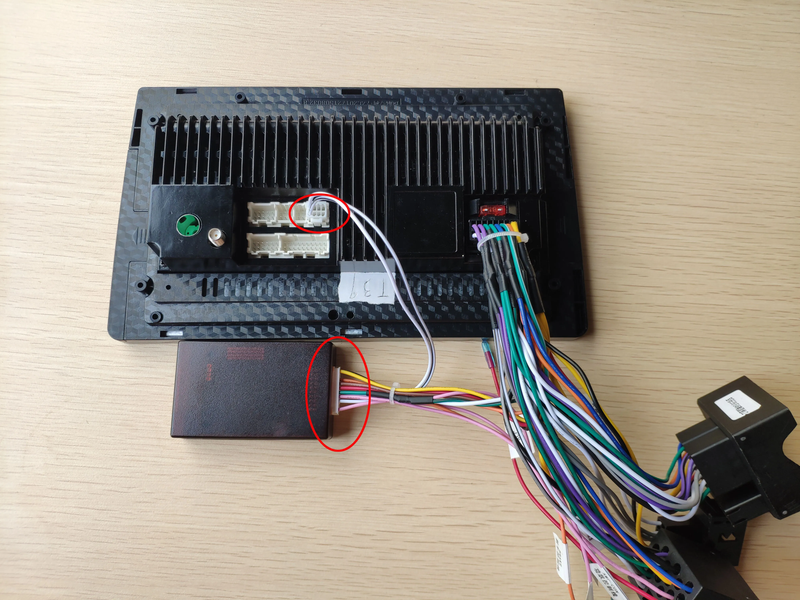
Ensure the CANBUS module is properly connected:
Quad:
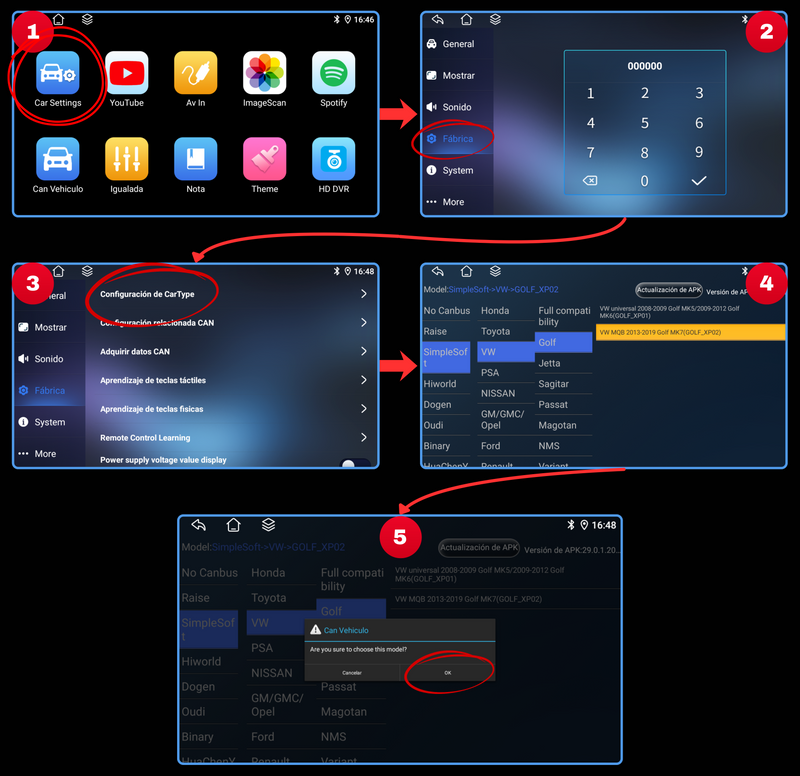
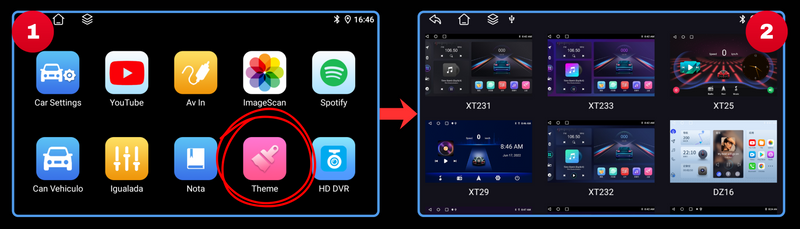
Enter the Car Settings app, go to Factory, then CarType Settings, enter password 000000, select canbus brand and car model
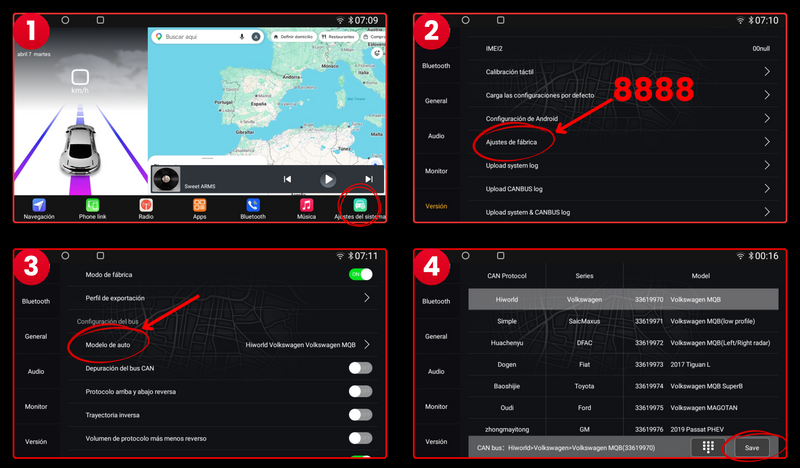
Octa:
Go into the System Settings app, then the Version section, then Factory Settings, password 8888, Car Model, select canbus brand and car model and click "Save"
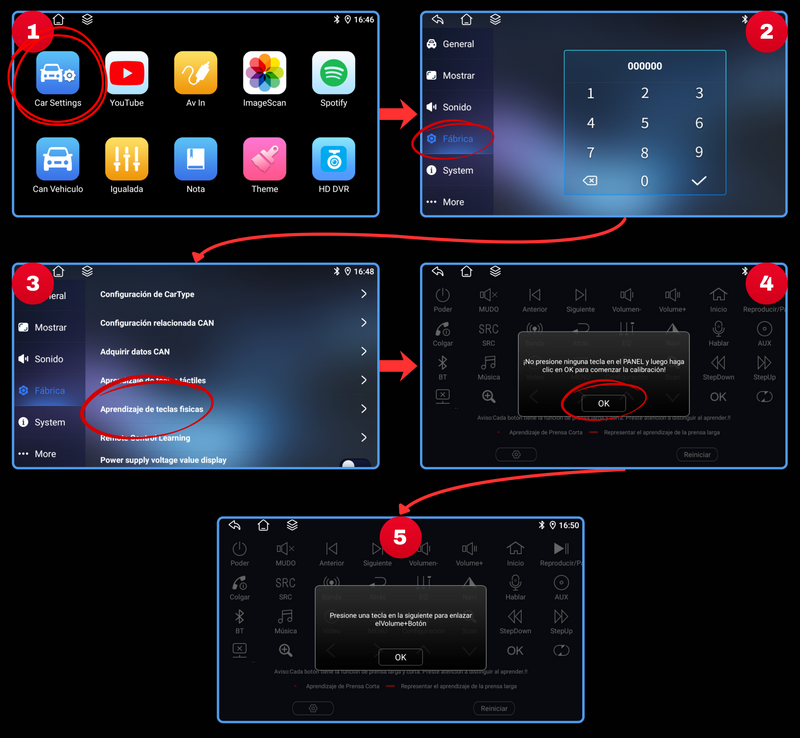
Quad:
Go to the Car settings app, Factory section, Physical key learning, and configure the controls to your liking
Octa:
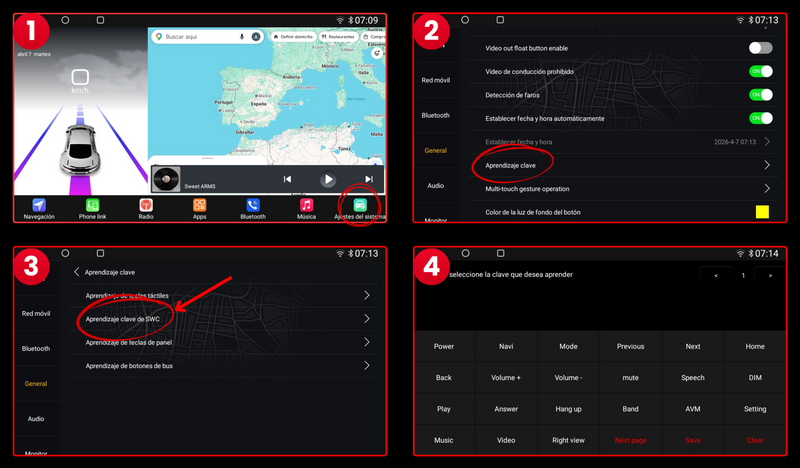
Go to the System Settings application, General section, then Key Learning and SWC Key Learning, select the function you want to assign, and then hold the steering wheel button for 3 seconds
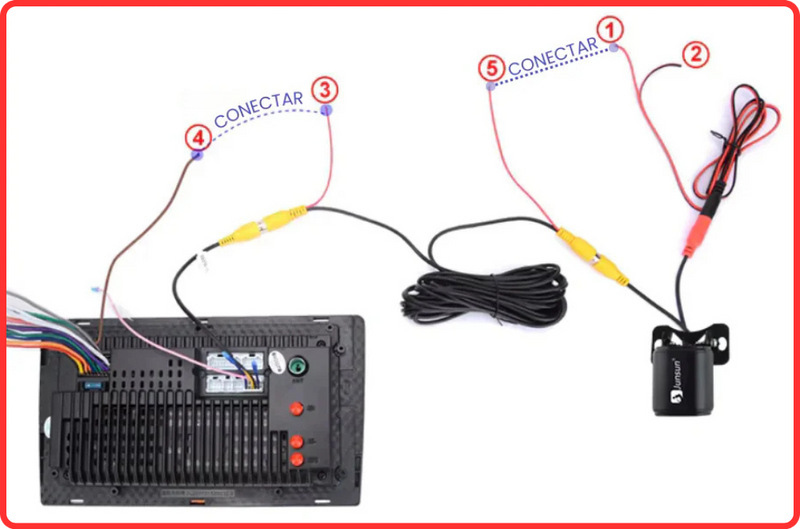
For models with CANBUS
- Connect the yellow RCA cable from the camera to the one on the screen
- Connect the cable marked 3️⃣ to 4️⃣
- Connect the cable marked 1️⃣ to the 5️⃣
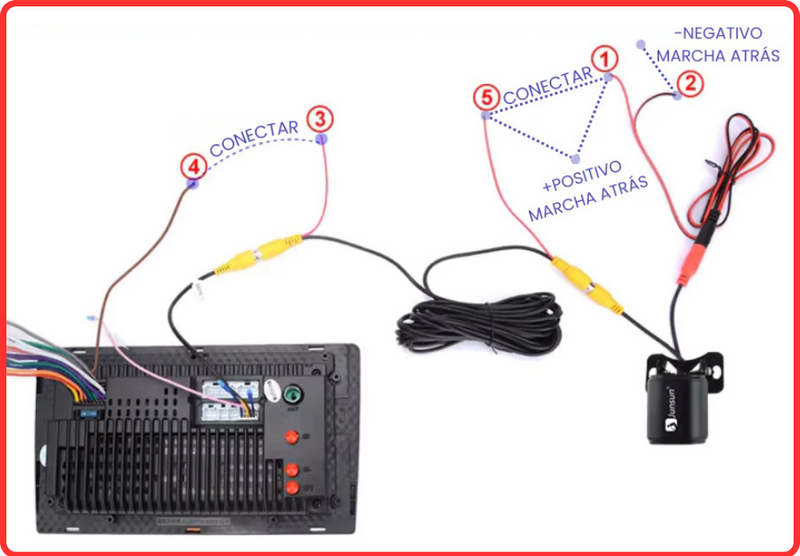
For models without CANBUS
- Connect the yellow RCA cable from the camera to the one on the screen
- Connect the cable marked 3️⃣ to 4️⃣
- Connect the wire marked 1️⃣ to 5️⃣ and this connection to the reverse positive terminal.
- Connect the wire marked 2️⃣ to the reverse negative terminal
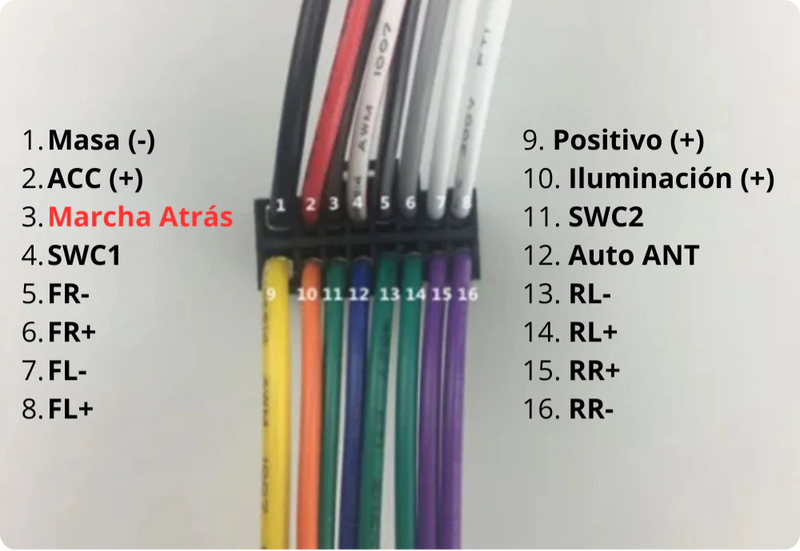
Wire 4 is located in the radio's main wiring harness. In some models, it is labeled "Reverse" or "Brake" . If it is not labeled, it is wire number 3 in the following photo:
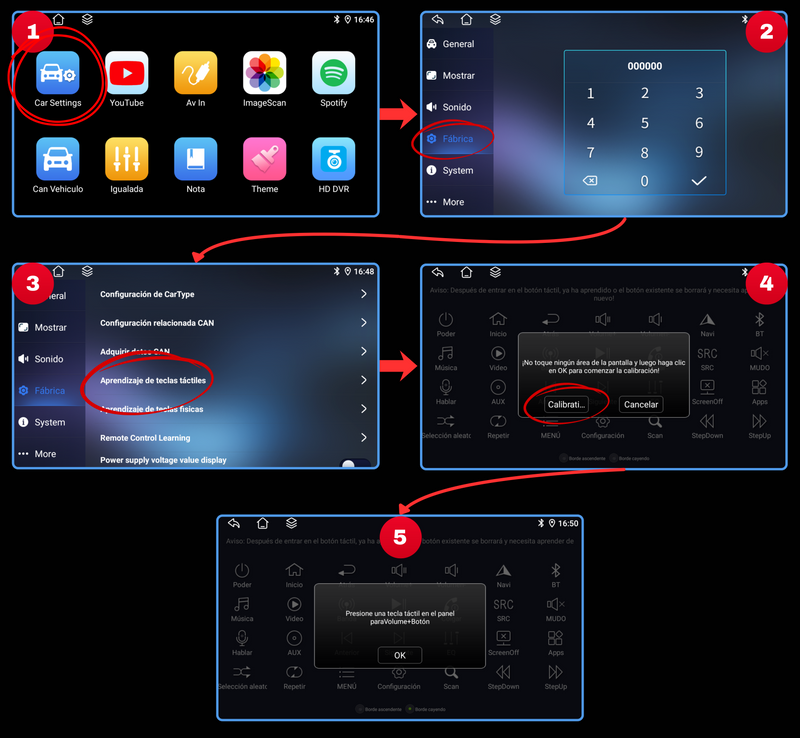
My touch keys have become unconfigured, how do I configure them?
Learning Process in Radio:
Go to the Car Settings app on your screen, enter Factory .
It will probably ask you for a password, it's 000000 .
Look for the Touch Key Learning section and configure the keys
Step 1: Press a button on the radio display (e.g., "Volume Up"). The button will light up or change state, indicating that it is "listening".
Step 2: Immediately afterwards, press and hold the corresponding touch button on the side of your car's screen (the actual volume up button).
Step 3: The radio will detect the signal and the icon on the screen will be "programmed" (it usually changes color).
Step 4: Repeat this process for all the buttons you want to program (Volume Down, Mute, Next, Previous, Answer Call...).
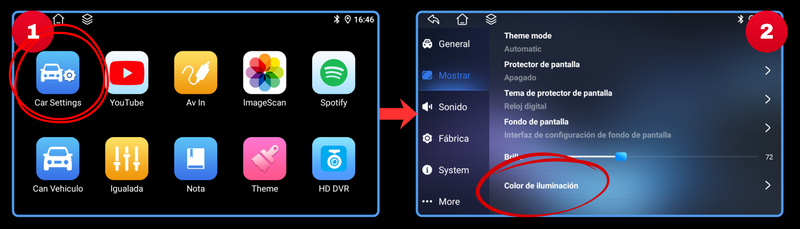
CHANGE TOUCH KEY COLOR
Enter the app " Car Settings ", then " Display ", and finally " Lighting Color "
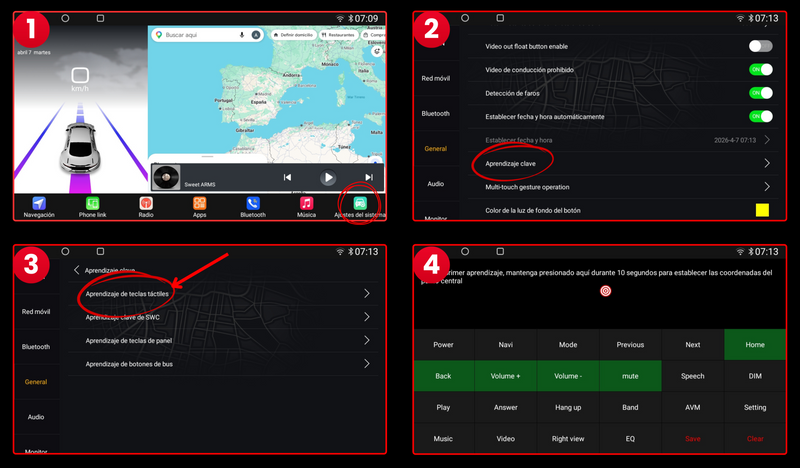
My touch keys are misconfigured, how do I set them up?
Learning Process on the Radio:
Go to the System Settings app on your screen, then enter General.
Find the Key Learning section and then Touch Key Learning and configure the keys.
Step 1: Press the screen where indicated for 10 seconds to perform the initial calibration.
Step 2: Press a button on the radio's screen (e.g., "Volume Up"). The button will light up or change state, indicating that it is "listening."
Step 3: Immediately after, press and hold the corresponding touch button on the side of your car's screen (the actual volume up button).
Step 4: The radio will detect the signal and the icon on the screen will be "programmed" (it usually changes color).
Step 5: Repeat this process for all the buttons you want to program (Volume Down, Mute, Next, Previous, Answer Call...).
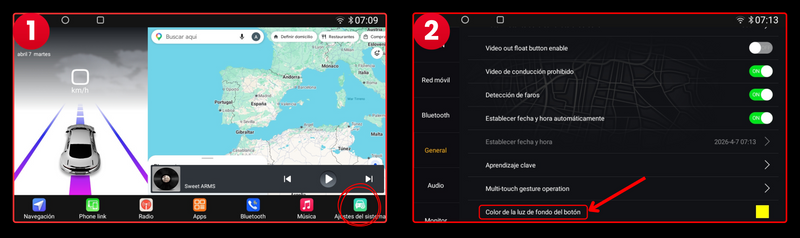
CHANGE TACTILE BUTTON COLOR
Enter the System Settings app, then General, and finally "Button backlight color"
Why does the screen not respond when I touch it or open the wrong page when I touch it?
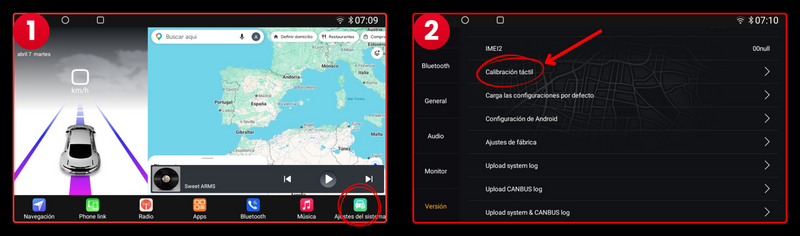
This could be due to a screen malfunction; it needs to be calibrated.
Press the screen with five fingers simultaneously. The calibration icon will appear. Click on it to complete the calibration. Please note that pressing the screen with five fingers may take more than 20 seconds.
OCTA VERSION:
Go to the System Settings app, then to Version and finally to "Touch Calibration"
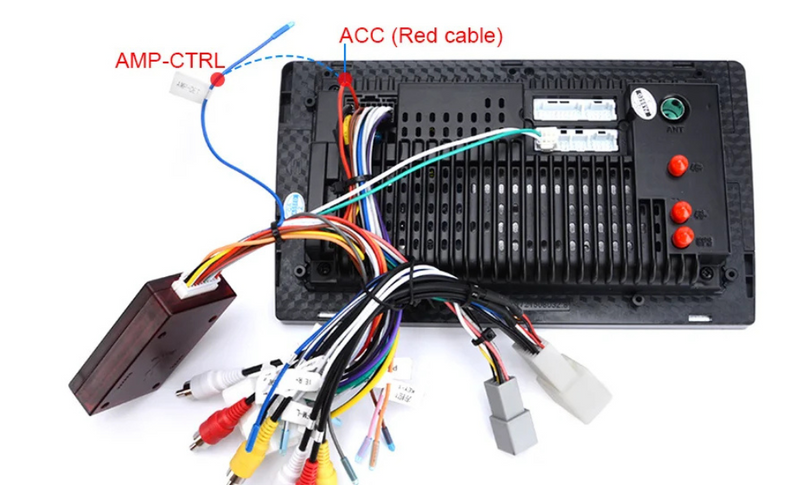
Make sure to connect the AMP cable to the red ACC main power cable.
Make sure the CANBUS is properly connected.
The power cable you received should have a yellow RCA plug on top (the cable that supports the rear camera). If it has a yellow RCA plug, connect it according to the wiring diagram below.
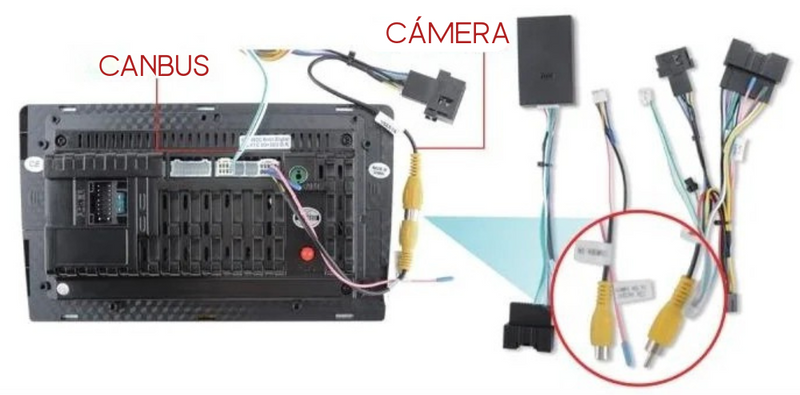
This option is only available for models with CANBUS
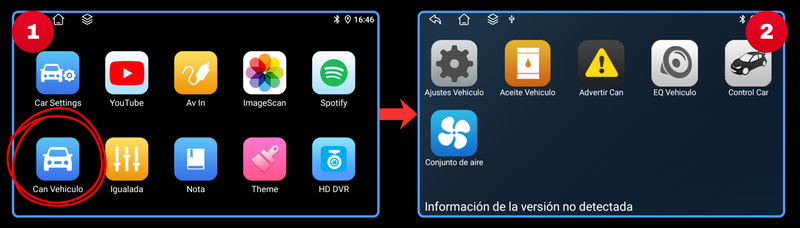
QUAD VERSION:
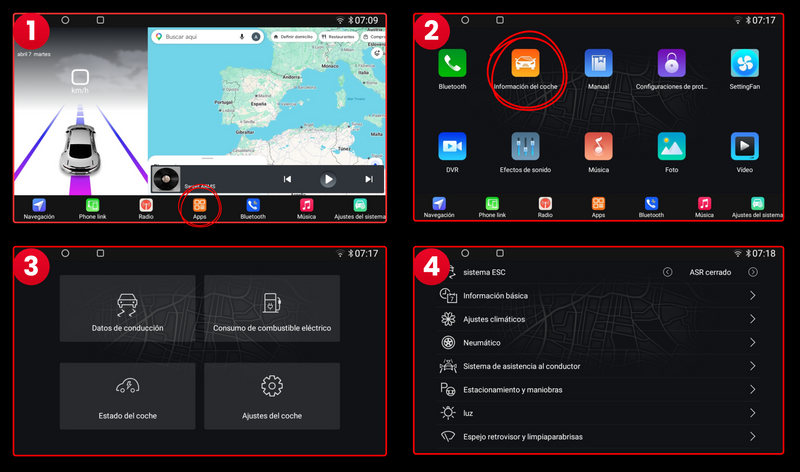
First, configure the CANBUS and then open the "Can Vehicle" app to view the available original settings
OCTA VERSION:
First, configure the CANBUS and then open the Car Info app to view the available original settings

Android Auto Carplay Head Unit Volkswagen Touareg Multivan Transporter 2004-2011
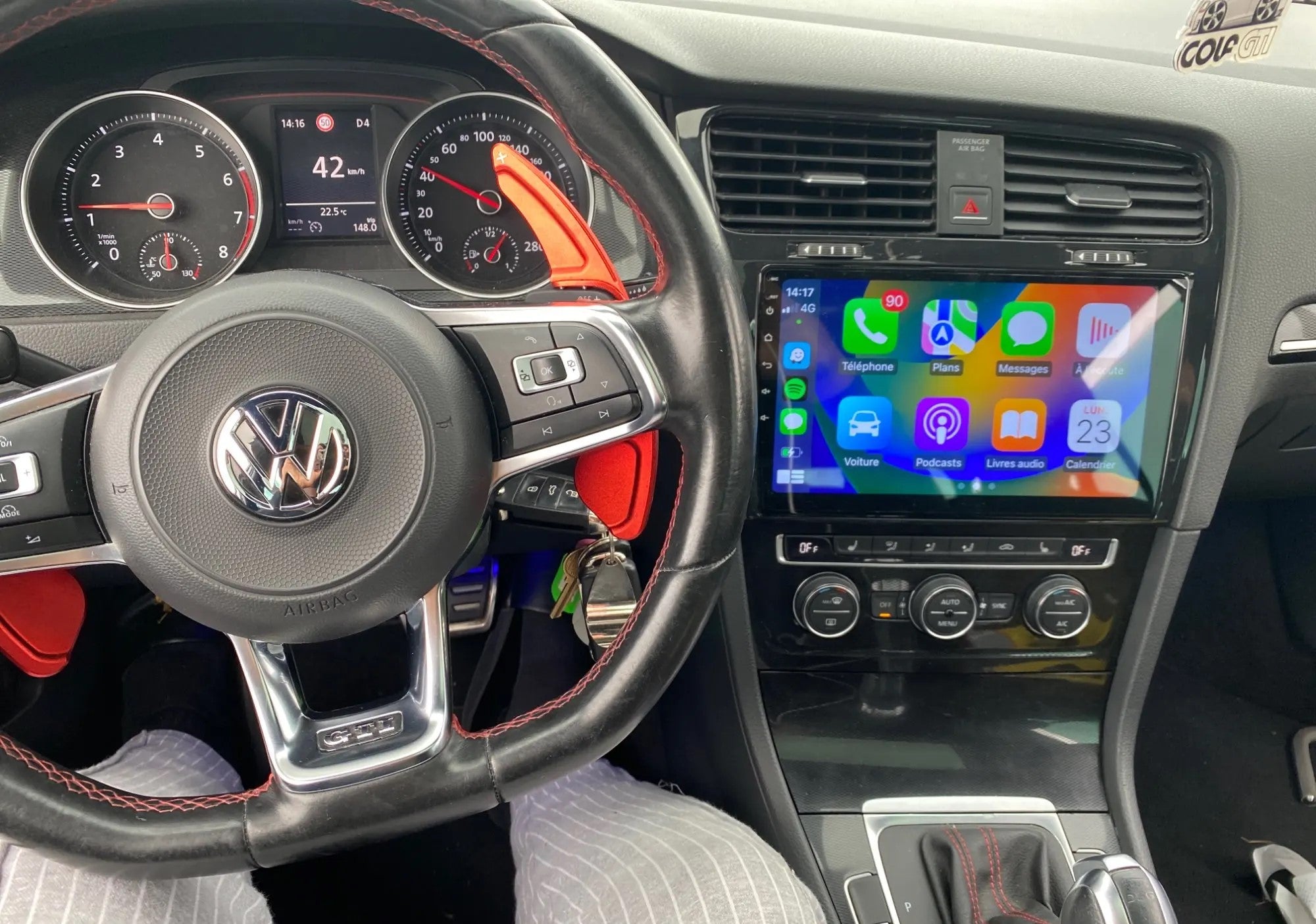
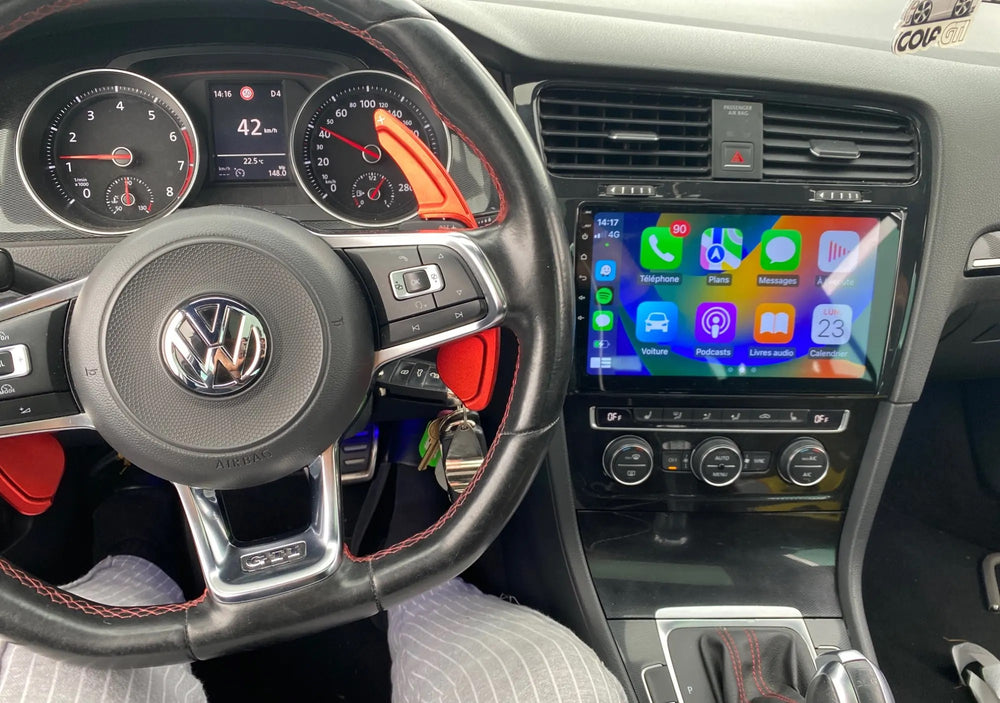
Maintain full control of the steering wheel and all its functions
Connect any rear camera for safe parking
High-quality HD IPS touchscreen with custom-made frame
Powerful 8-core processor for maximum fluidity
Enjoy full wireless connectivity with Apple CarPlay and Android Auto
View the climate control system on screen if your car has CANBUS
Browse with complete freedom, 4G and WiFi connectivity
